Every client gets their own portal link the first time you send them an invoice: a page where they view and download their invoices without needing to log in anywhere. This page shows exactly what your client sees there, and how online payments fit into it.
What your client sees
The portal page lists every invoice for that client: invoice number, date, due date, amount and status. No settings, no other clients, just their own invoice history, in your brand.
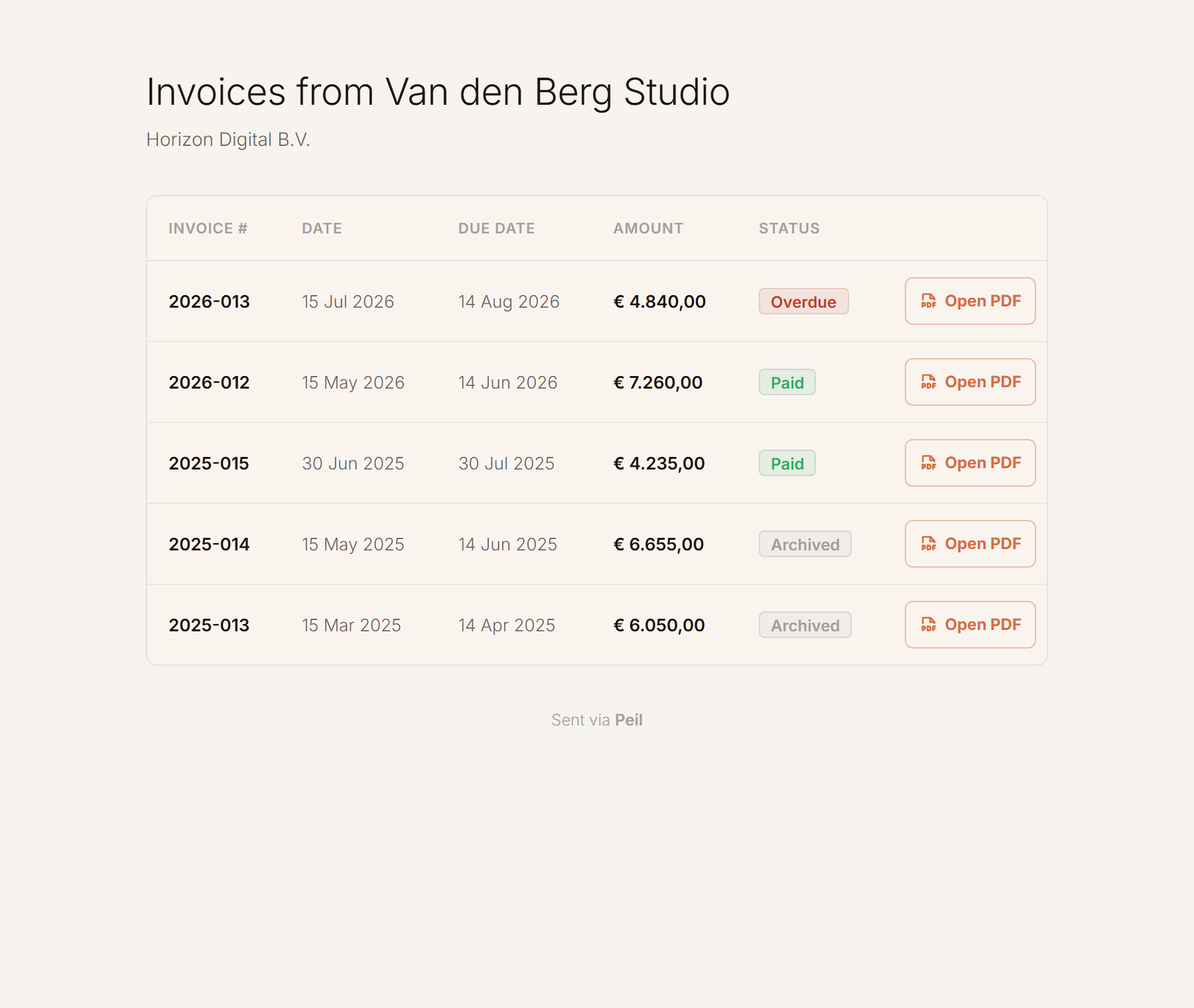
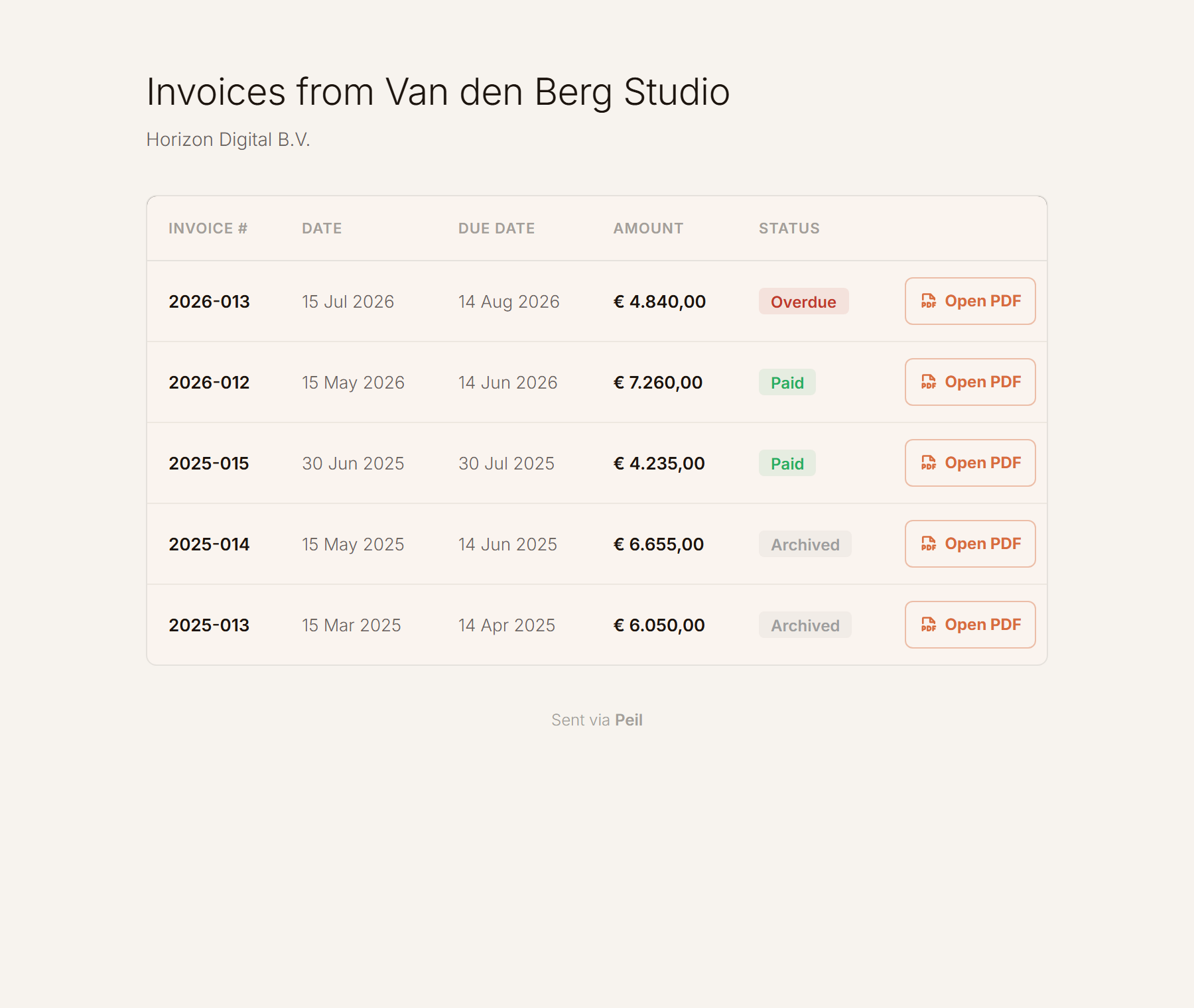
The "Overdue" status above isn't stored anywhere on its own: Peil computes it live from the due date, every time the page opens. An invoice that still reads "Sent" inside the app itself honestly shows as overdue in the portal the moment its due date has passed. Paid invoices no longer show a payment button.
Online payments (Peil Pro)
Connect your own Mollie account at Settings → Email & sending → Online payments, and a "Pay now" button appears on open and overdue invoices in the portal.
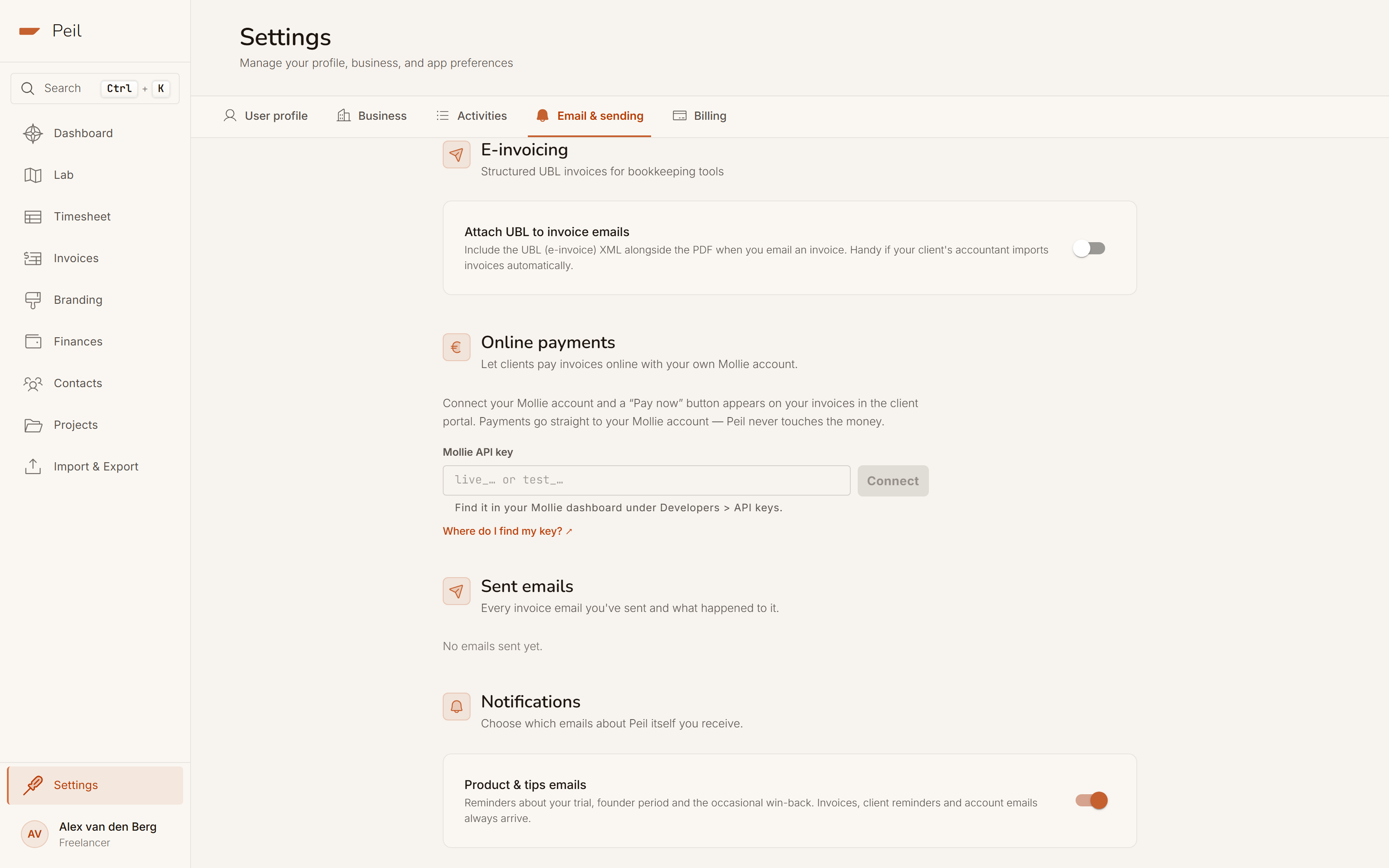
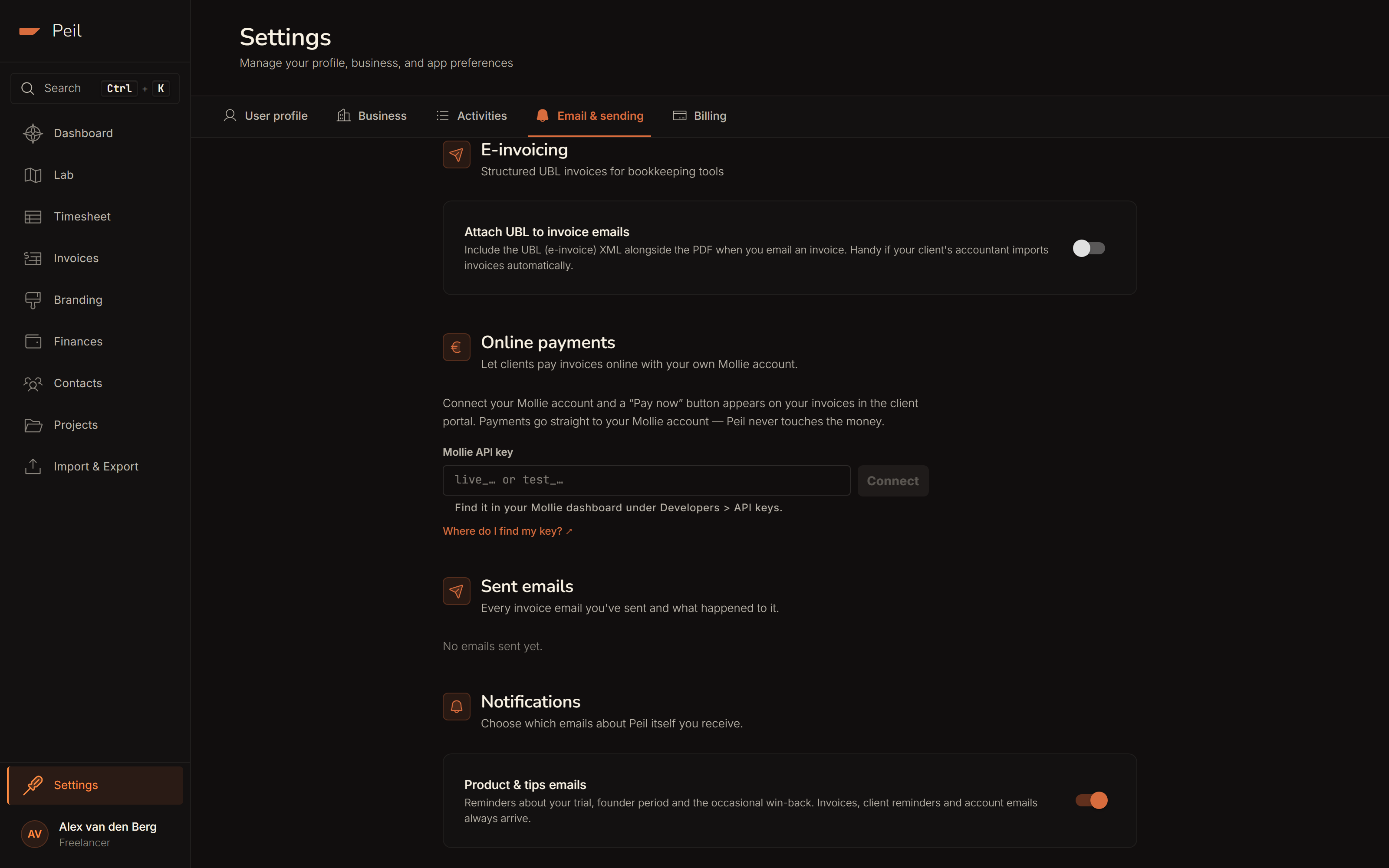
The money goes straight to your own Mollie account, never through Peil. The moment a payment comes in, Peil recognizes it automatically and marks the invoice paid; the "Mark invoice unpaid" button then disappears from the app, because from that point on Mollie is the source of truth for that invoice.
Invoices and reminder emails automatically get a direct "Pay now" link once online payments are active, so your client doesn't need to visit the portal first to settle up.
The client portal comes with sending from Peil, and sending is part of Peil Pro, as are online payments through your own Mollie account. On the free plan you download your invoice as a PDF and send it yourself.
Your own branding
Logo, colour and name for the portal are set in the design editor, alongside your invoice PDF and invoice email. See Invoice & brand design for how to change that, and Managing clients for how the portal link gets created per client.