Everything your client sees is designed in one place: the invoice PDF, the email it arrives in, and the portal where they open it. The design editor shows a live preview next to every change, so you see exactly what your client will receive.
The design editor is part of Peil Pro. On the free plan your invoices go out on the default template; customizing the template, colors, logo and brand is a Pro feature.
Open the editor at peil.app/design or from the invoice page. Three tabs sit at the top: Invoice, Email and Client portal. The Invoice tab controls the PDF; the other two put your brand on the client-facing channels.
The Invoice tab
This is where you design the PDF. Controls on the left, and on the right an invoice preview that updates within half a second of every change.
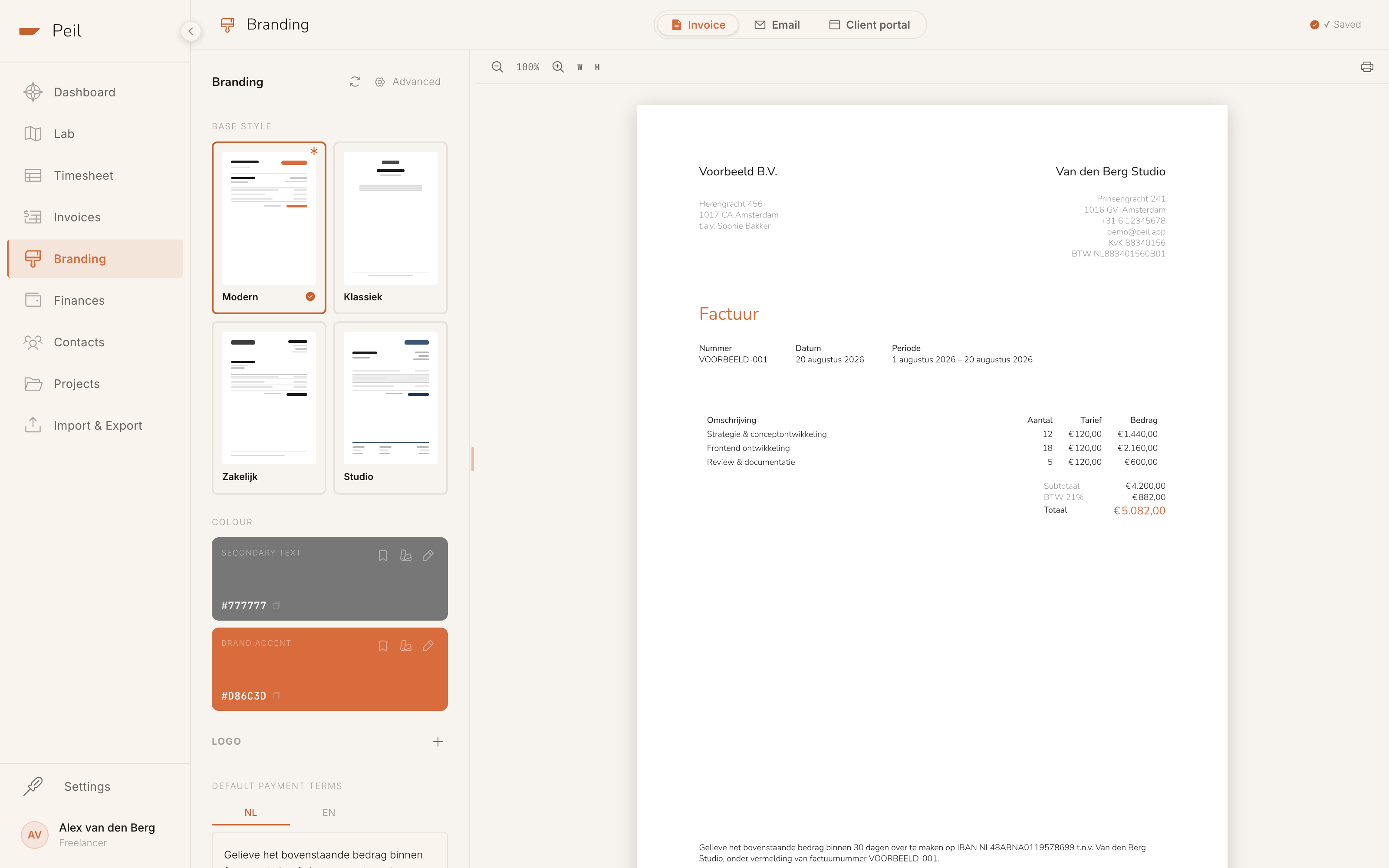
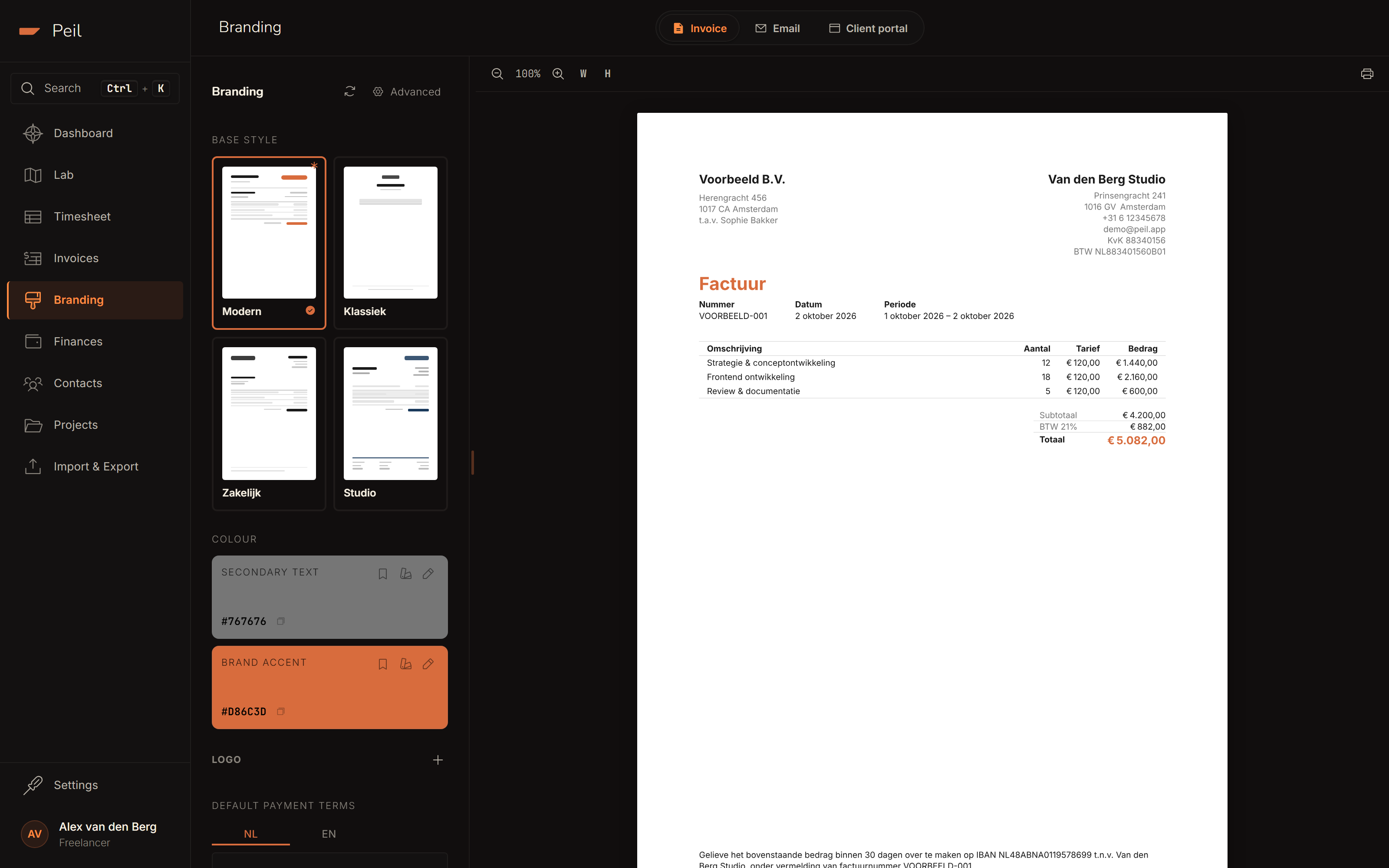
You start with a base style. The template mainly sets the layout: where your logo sits and how your details and the client's are arranged. Color, typography and table styling you adjust separately, whichever template you pick — so the four differ in structure, not in a fixed style:
- Modern — two-column header: your details and the client's side by side.
- Klassiek — a centered header across the full width.
- Zakelijk — logo top-left, invoice details top-right, address block below.
- Studio — prominent logo, full width, three-column footer.
Below that you set your brand accent (the color of headings and accents) and upload your logo. That's all you need for a polished invoice: pick a layout, set your color, drop in your logo.
Advanced settings
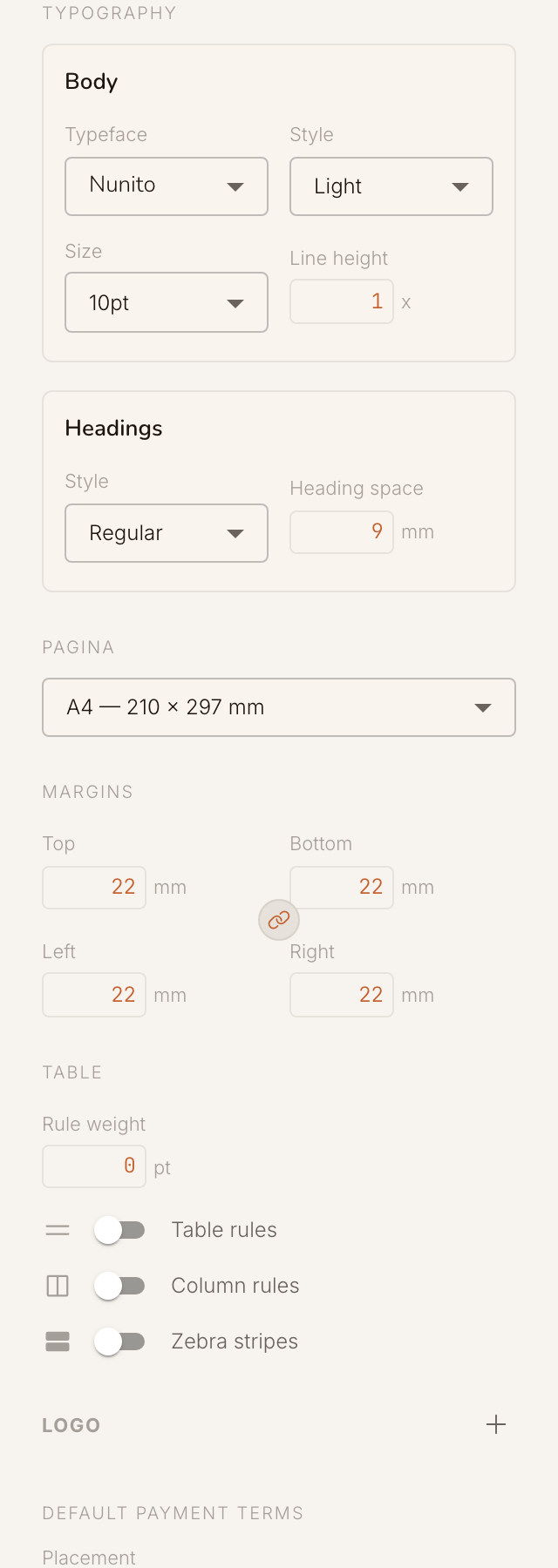
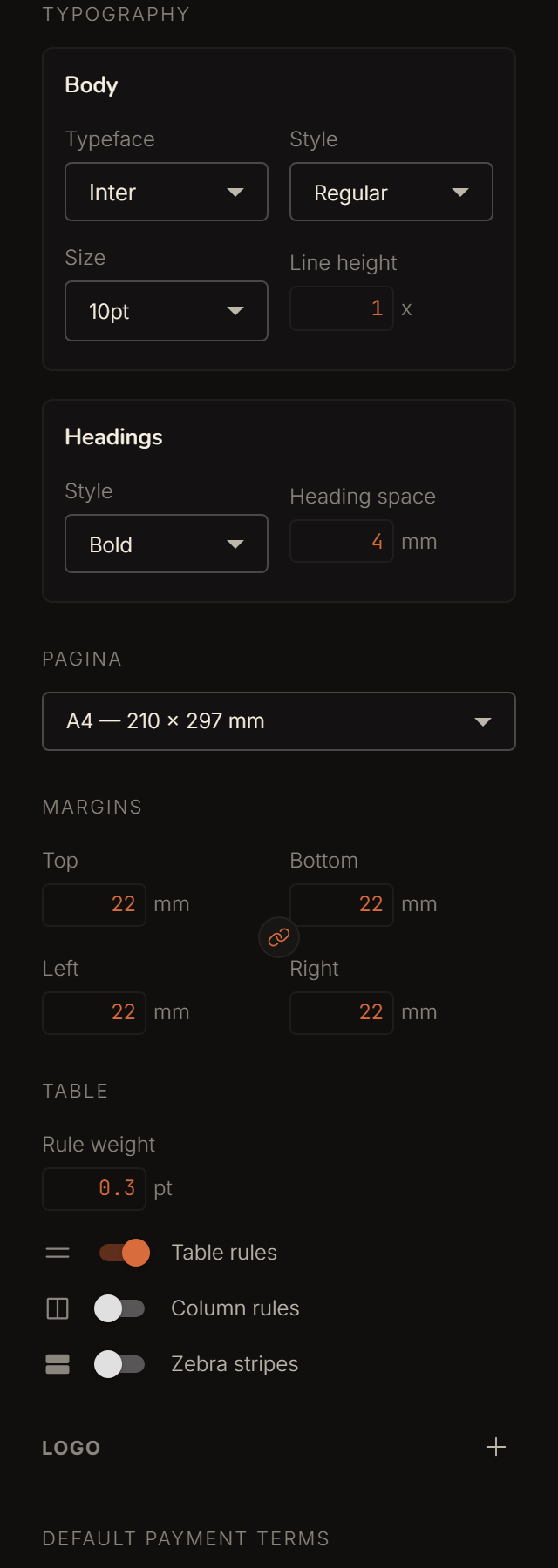
The Advanced button unfolds the fine-tuning — handy when you want to match an existing brand exactly:
- Typography — font, style, size, line height and space after headings, set separately for body text and headings.
- Margins — top, bottom, left and right, with an option to link all four.
- Table — table rules on or off, zebra striping and line weight.
- Color — beyond the accent, also the secondary text and text color.
At the bottom you set your default payment terms. That text is filled in
automatically on every new invoice and stays editable per invoice. It takes variables — click
{iban}, {name} or {payment_days}
to insert them, and Peil fills them in per invoice.
Click Save when it's right, or Reset to default to restore the template. VAT exceptions (KOR, reverse charge) and reminders are covered in Time & invoices.
The Email tab
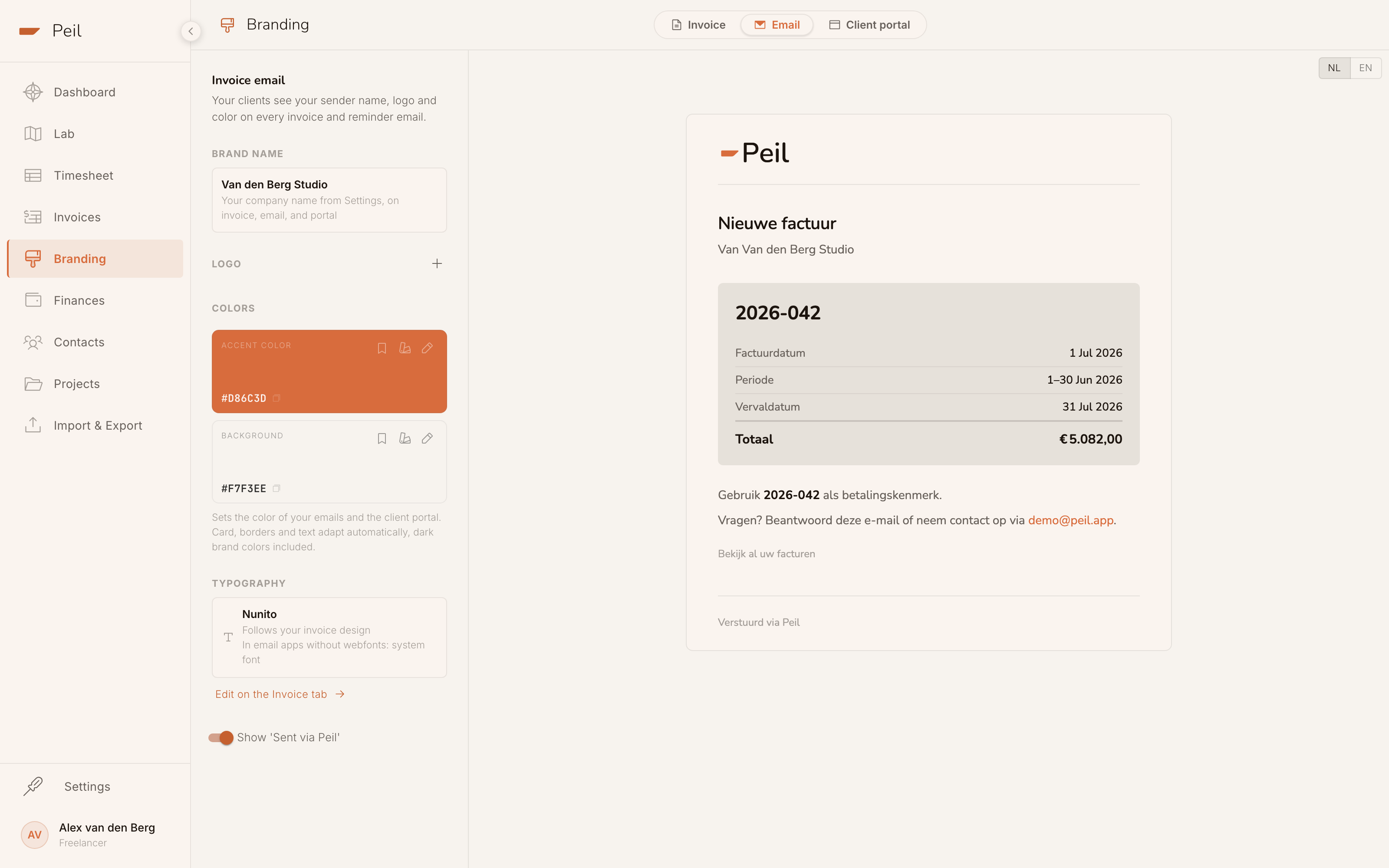
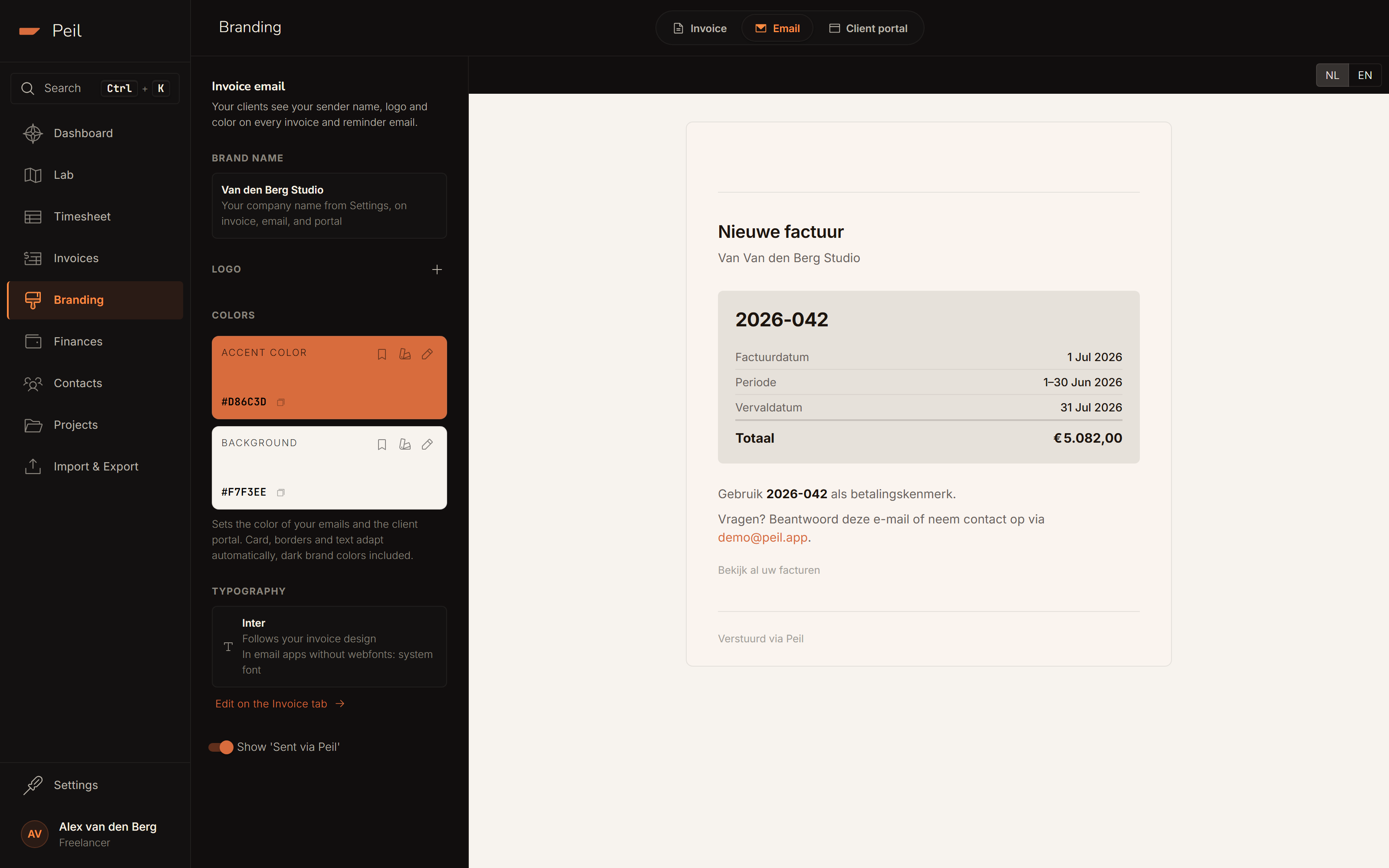
Your invoices reach your client as email. On the Email tab you put your own brand on it: your client sees your sender name, logo and color on every invoice and reminder email. Pick a background (from warm white to ink) — card, borders and text adapt automatically, dark brand colors included. Use the NL/EN toggle to preview in both languages.
The Client portal tab
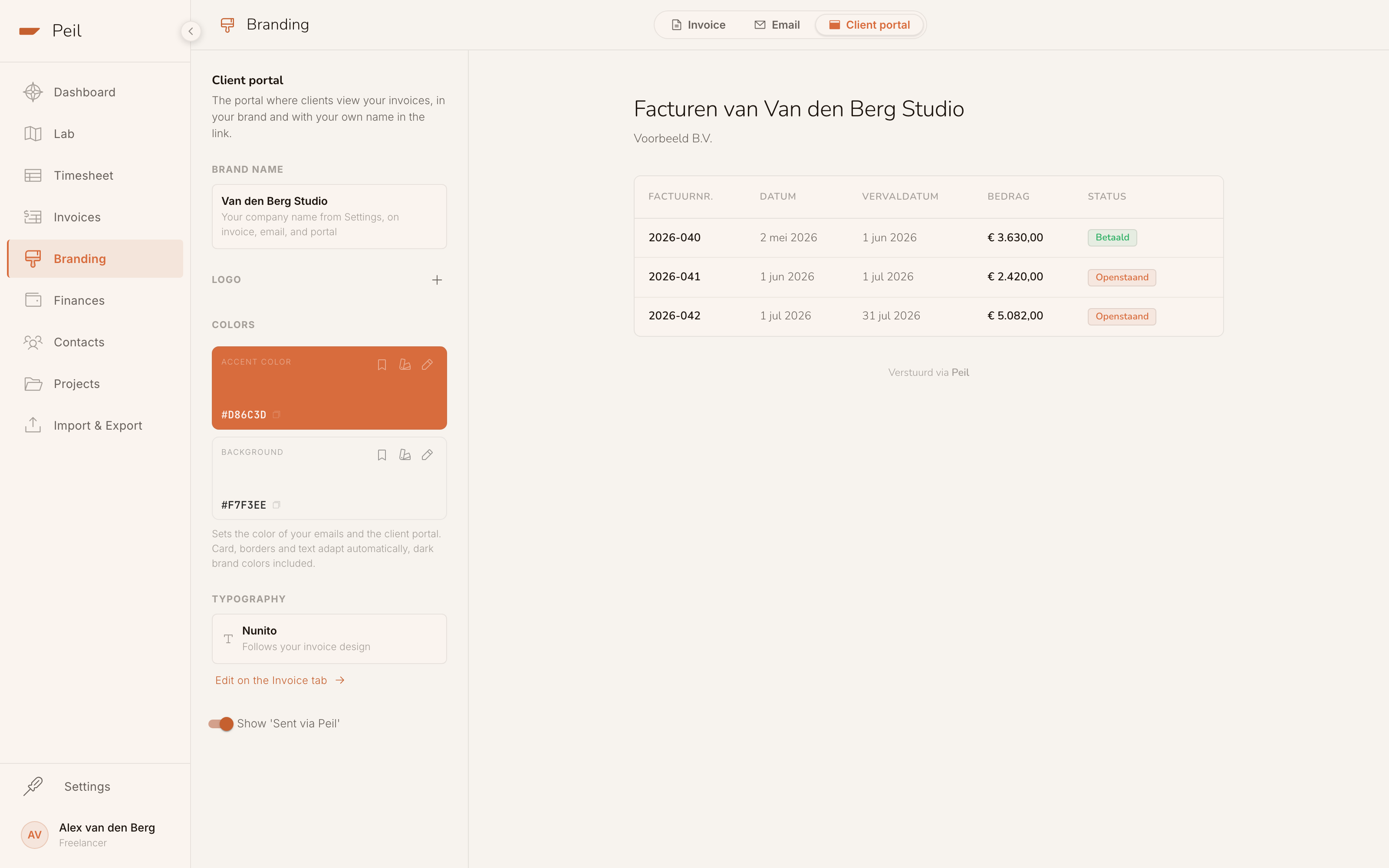
The client portal is the page where your client views and downloads their invoices, without logging in. The branding you set here — name, logo, color and background — gives that portal your look. The preview on the right is the actual portal filled with sample invoices, so what you see is what your client sees.
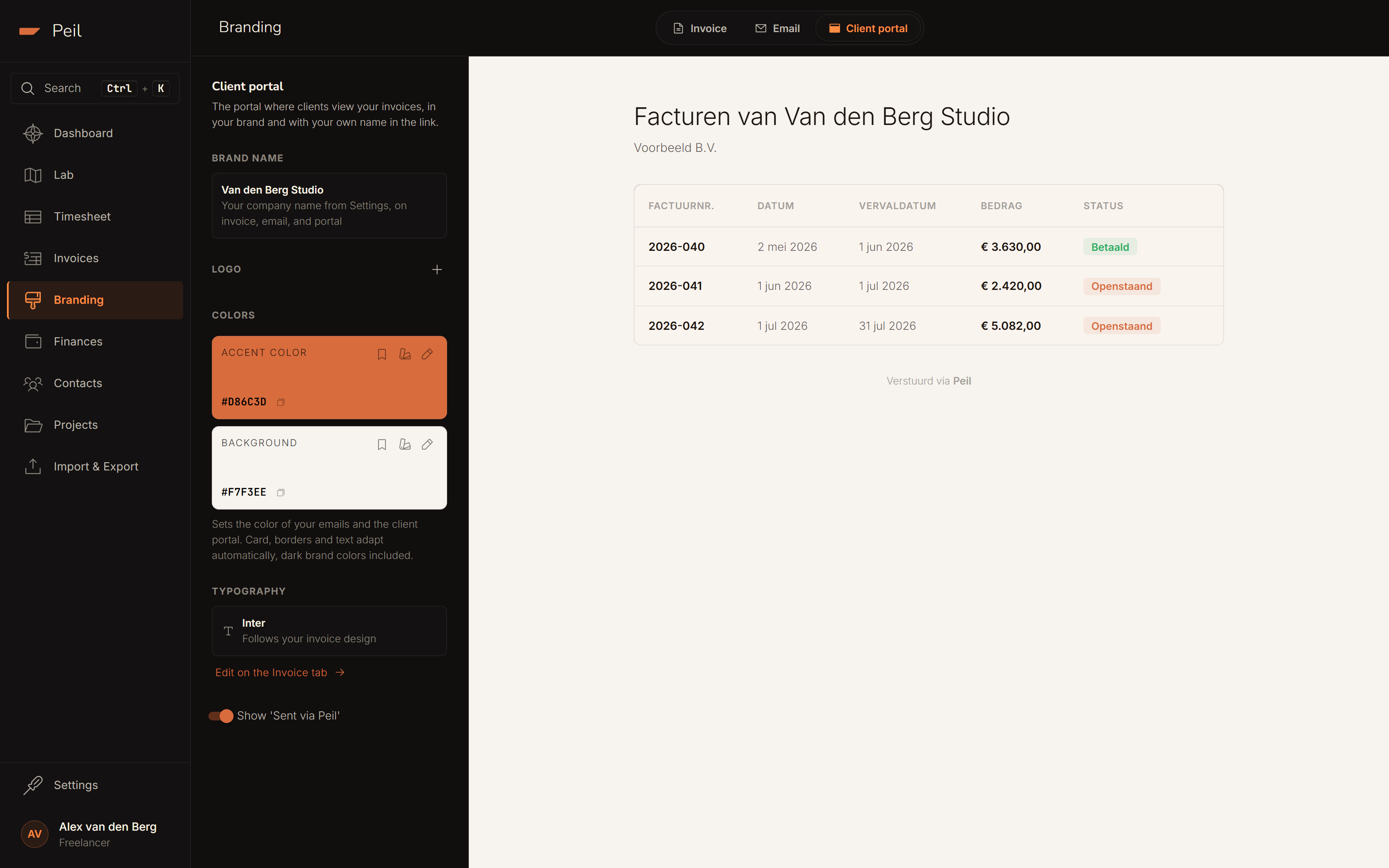
Your brand on email and portal is the white-label layer of Peil Pro, which also gives the portal a link with your own name in it.
See Time & invoices for the full path from logged hours to a sent invoice.