Every client in Peil is more than a name and address: it's the node where your hours, projects, invoices and rate history all come together. This page walks through creating a client, what the contact overview tells you, and how Peil keeps track of which rate applied when.
The contact overview
peil.app/clients lists every client with a colour dot, their current hourly rate, and a short status line: how many hours you've logged for them this month, how many of those are still unbilled, and how many invoices are still outstanding. A retainer client shows progress against the agreed monthly hours instead.
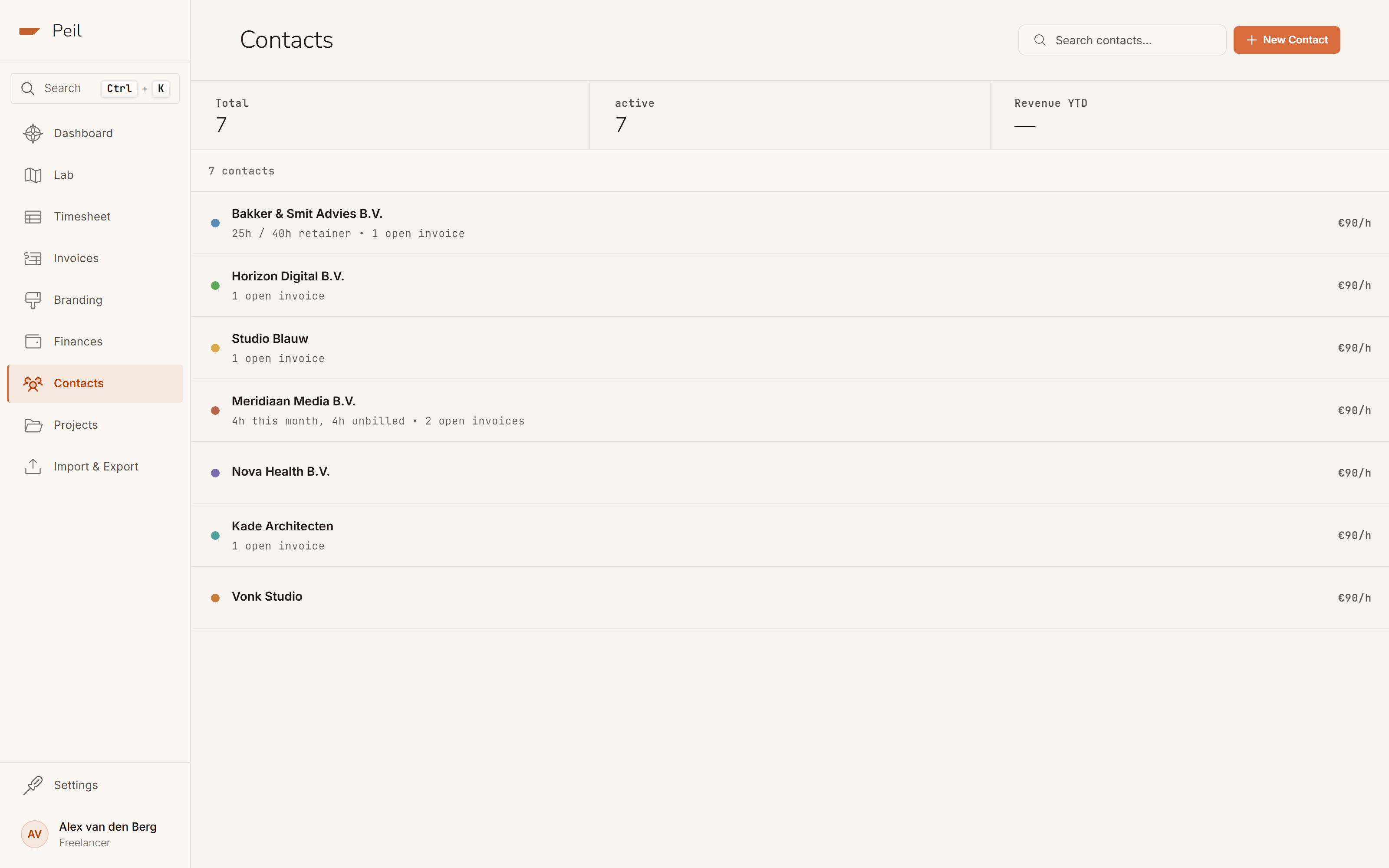
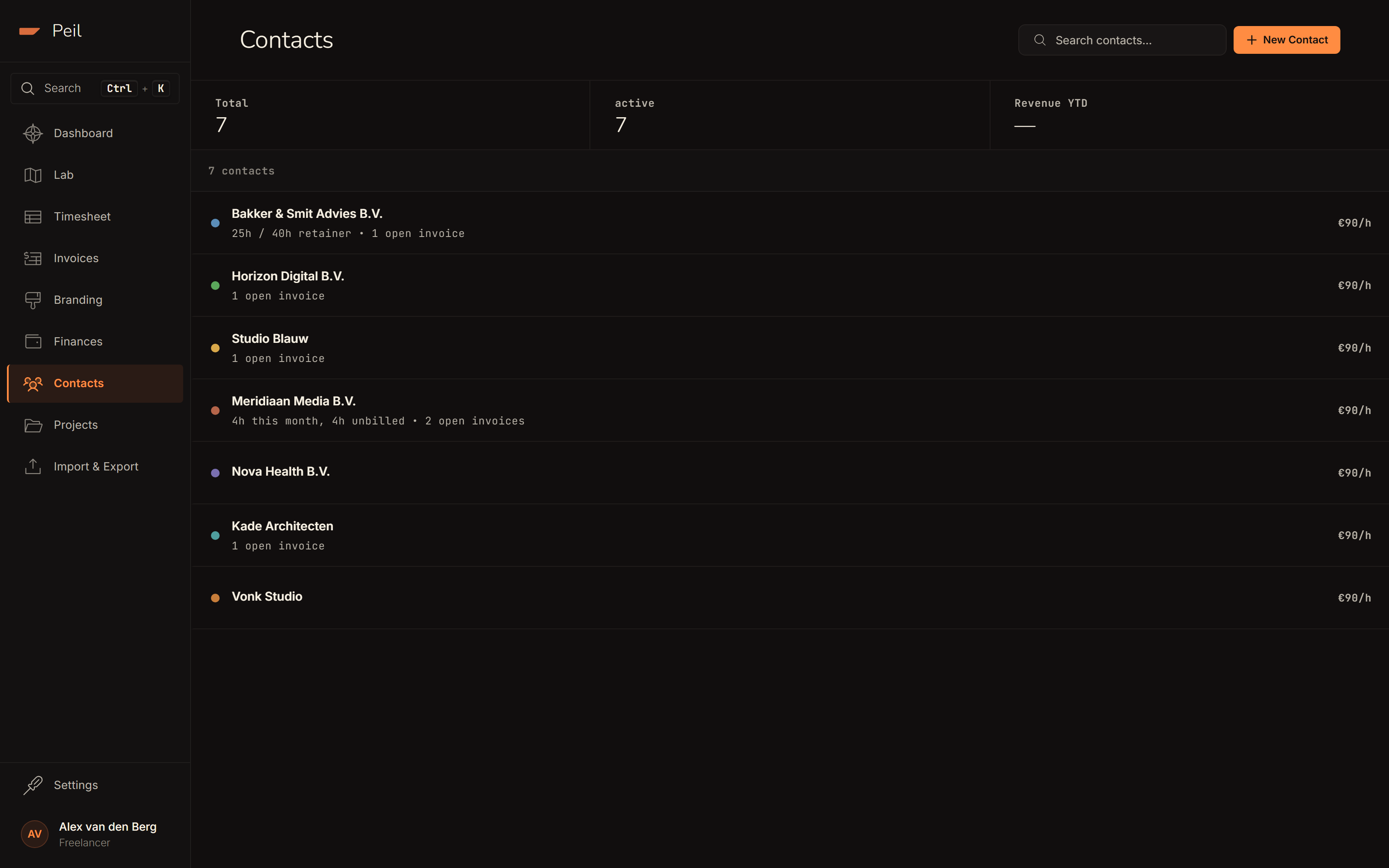
A short KPI strip at the top shows your total client count, how many are active, and your revenue this year. Clients you've deactivated (a wrapped-up engagement, say) stay hidden by default; "Show inactive" brings them back into view without deleting them.
Creating a client
Click New Contact for the form: company name, KvK and VAT number, address, contact person, and email.
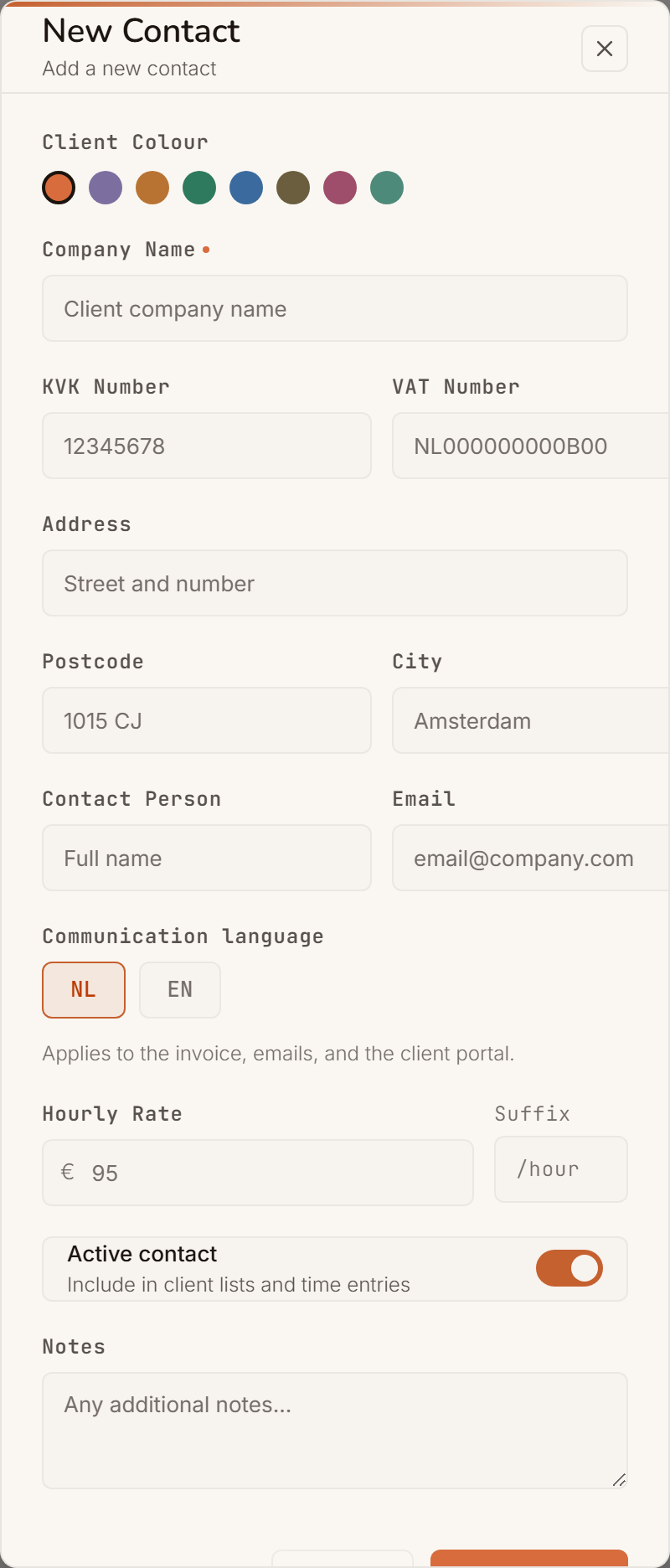
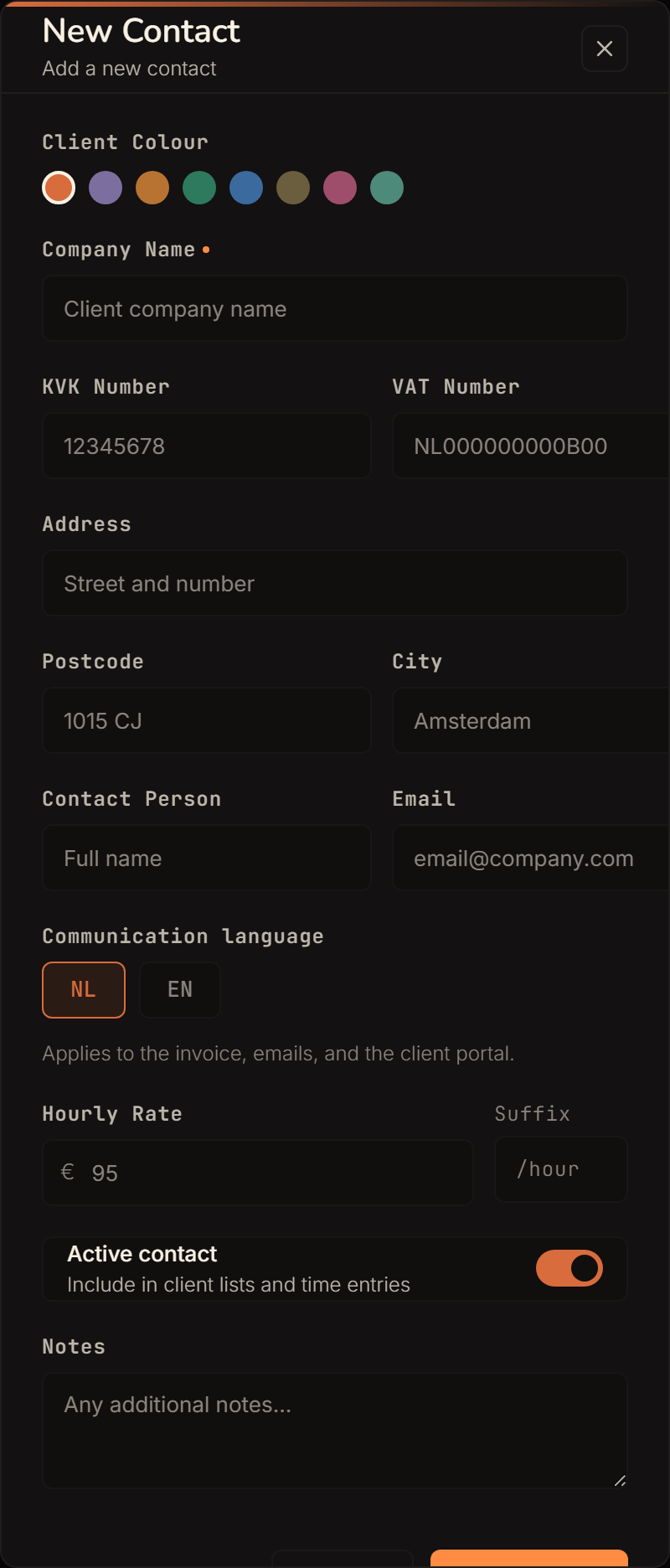
Two fields are worth a closer look:
- Invoice language: NL or EN, per client. This sets the language of the invoice PDF, but also of the invoice email and the client-portal page this client sees.
- Default hourly rate: the starting point for new time entries with this client. The moment you ever change the rate, rate history takes over as the source of truth (see below).
The client detail view
Click into a client for the full picture: hours billed, revenue this year, and current hourly rate. When unbilled hours are sitting there, you'll also see a clear banner with a shortcut to Create invoice.
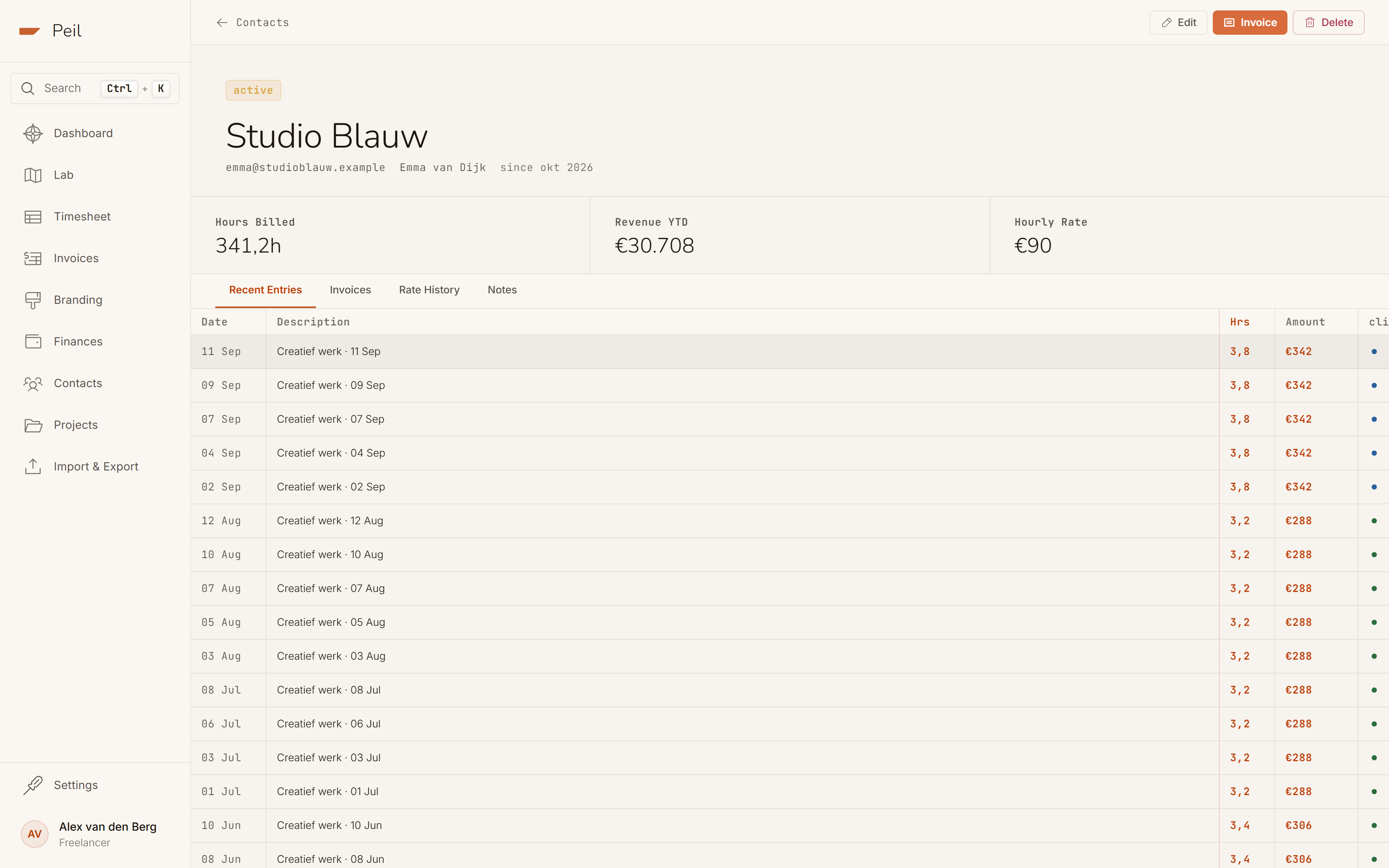
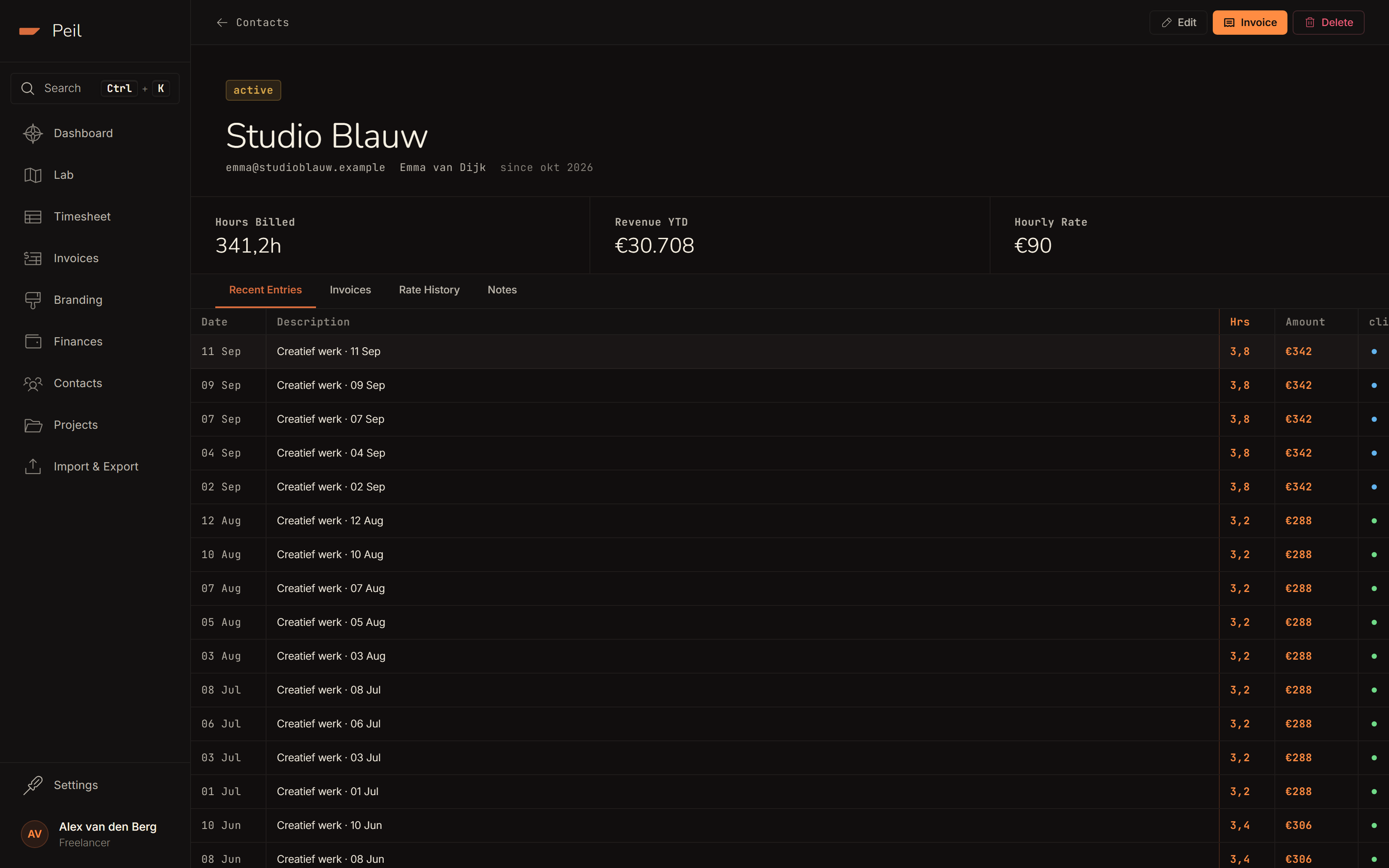
Four tabs give you the rest:
- Recent Entries: the latest time entries for this client, with amount and status per row.
- Invoices: every invoice to this client, with status and a one-click "download all" for the PDFs.
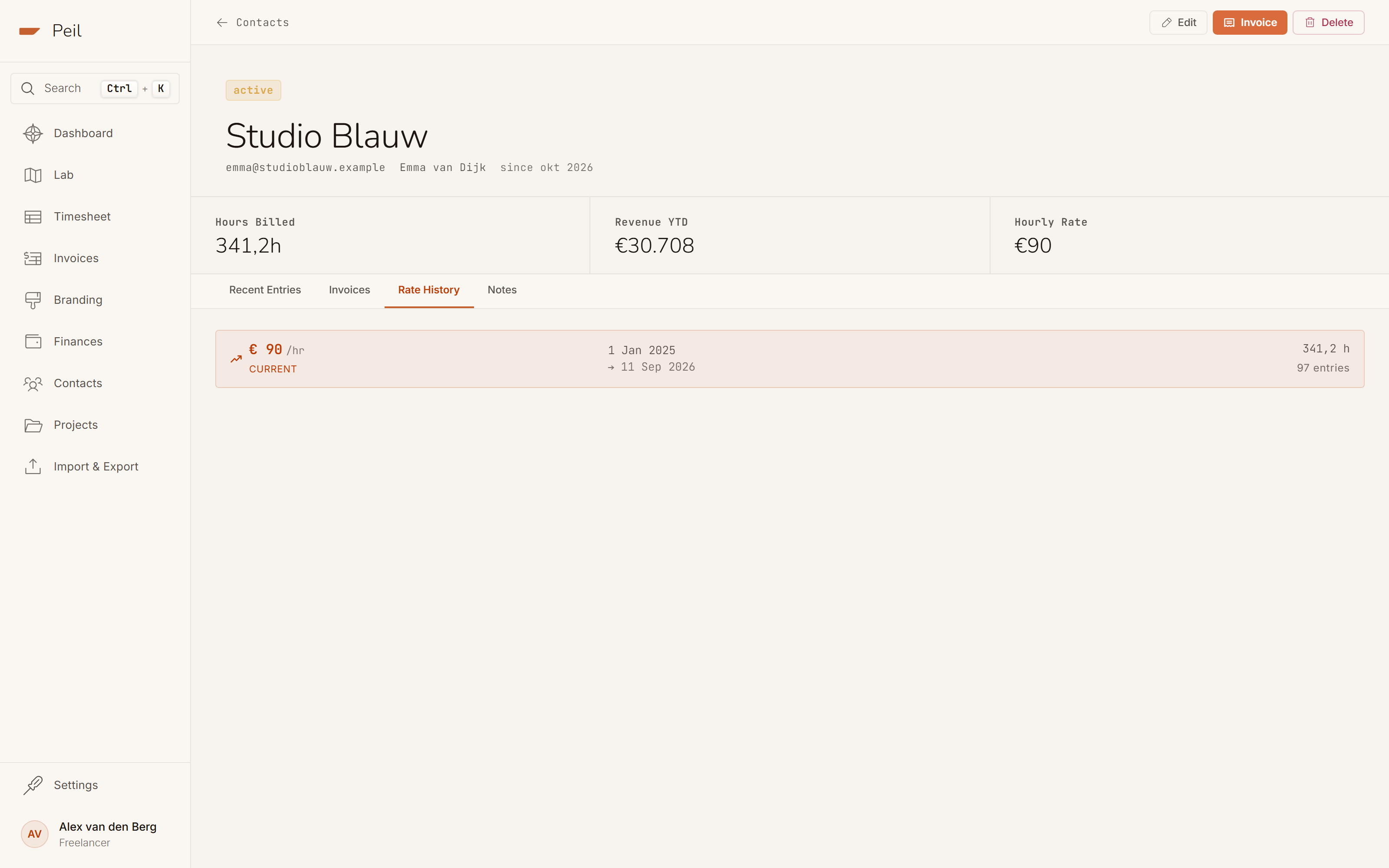
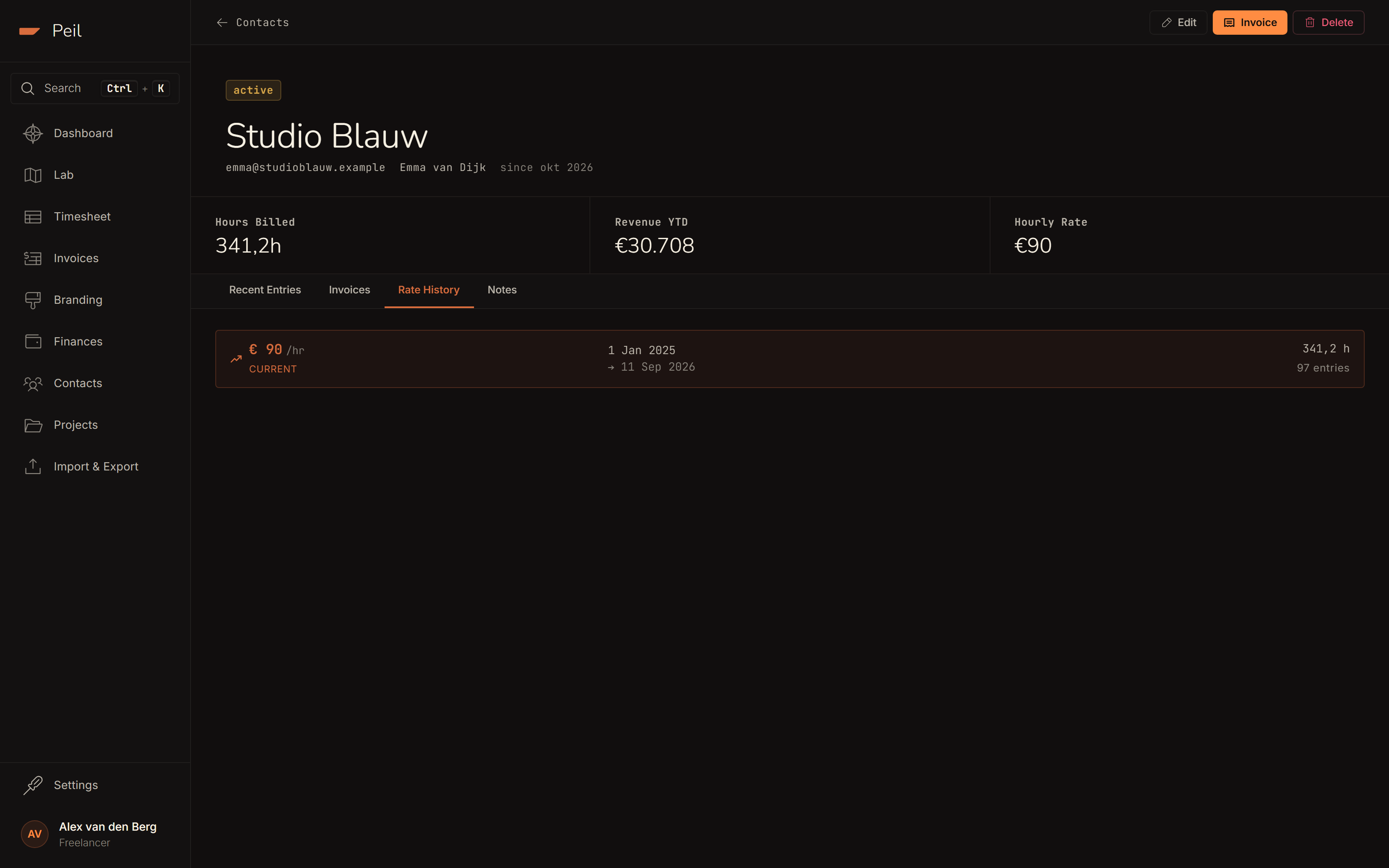
- Rate History: see below.
- Notes: free-form notes on this client, shared with project notes from the same relationship.
Rate history: the source of truth
Peil doesn't remember a single rate per client. It keeps the full history: every rate that's ever been used, the period it applied to, and how many entries fall under it. That matters, because the default hourly rate on the client form is only a starting point. Once you've logged time for a client, rate history takes over, not the form field.
When you log a new time entry, Peil resolves the applicable rate in this order:
- an explicit rate on the entry itself;
- the most recent rate-history record for this client and activity;
- the most recent rate-history record for this client with no activity;
- the client's default hourly rate;
- your account-wide default rate from settings.
The important detail: this resolves against the entry's own date. A backdated entry bills at whatever rate applied then, not your current rate.
A rate increase isn't something you apply by editing the client form. You apply it by simply logging a time entry at the new rate, and Peil automatically opens a new period in the rate history from that point on.
The client portal
Every client gets their own portal link the first time you send them an invoice: a page where they view and download their invoices without needing to log in. The portal's branding (your logo, colour and name) is set in the design editor. See Invoice & brand design for what that portal looks like and exactly what your client sees there.
See Managing projects for how to attach a client to an hourly, fixed-price, or retainer project, and Creating & sending invoices for the path from logged hours to a sent invoice.