Peil starts with a reading, not an empty screen. In a few minutes you see where your rate goes. After that you turn that estimate into the real thing, step by step, with your own hours and invoices.
First, onboarding: four questions
Onboarding is open to everyone, no account needed. You answer four questions:
- Rate: what you usually invoice per hour.
- Hours: how many billable hours you work, per week or per year.
- Personal spend: what you need per month to live on.
- Savings: what you can use right away, in your current and savings accounts.
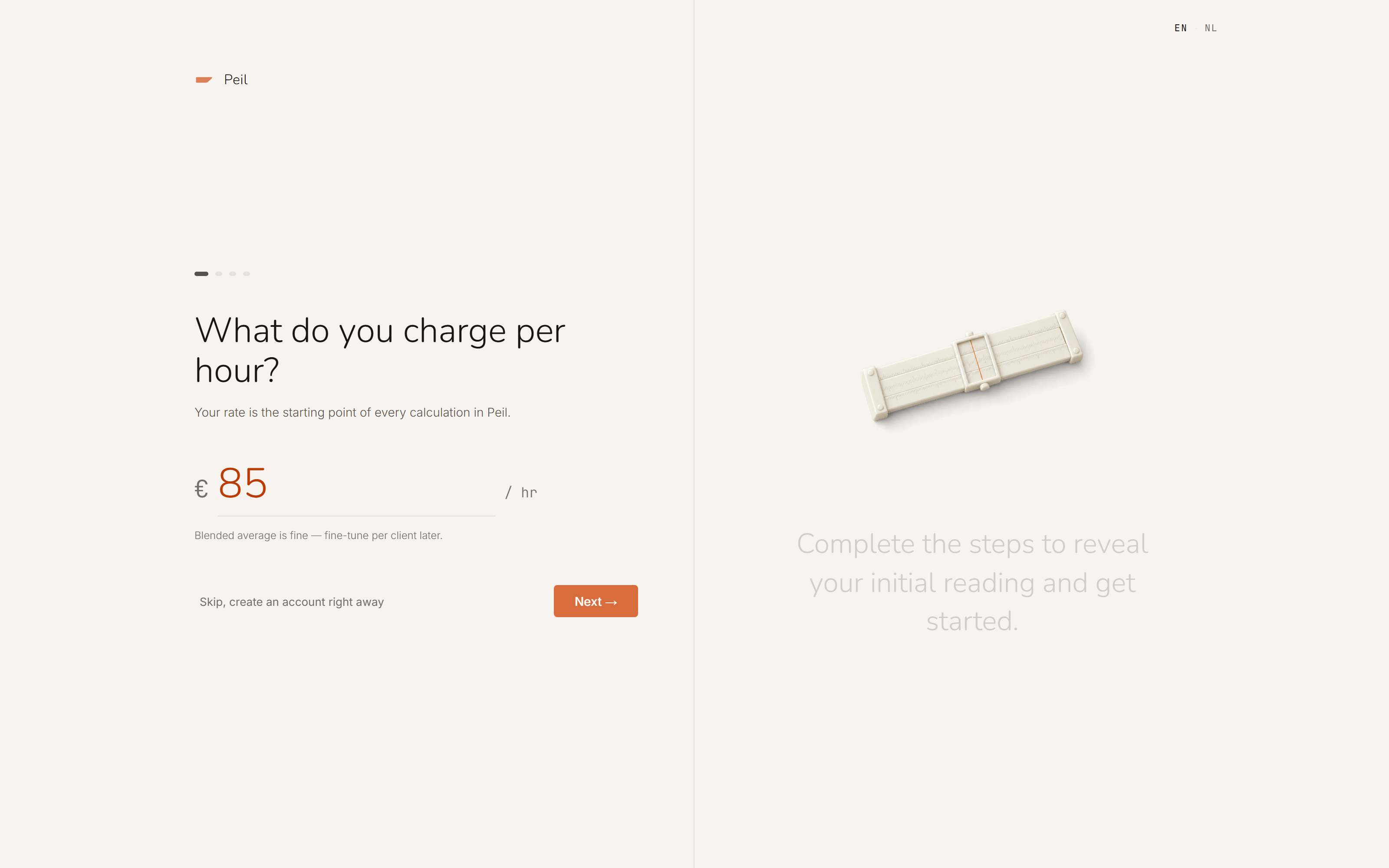
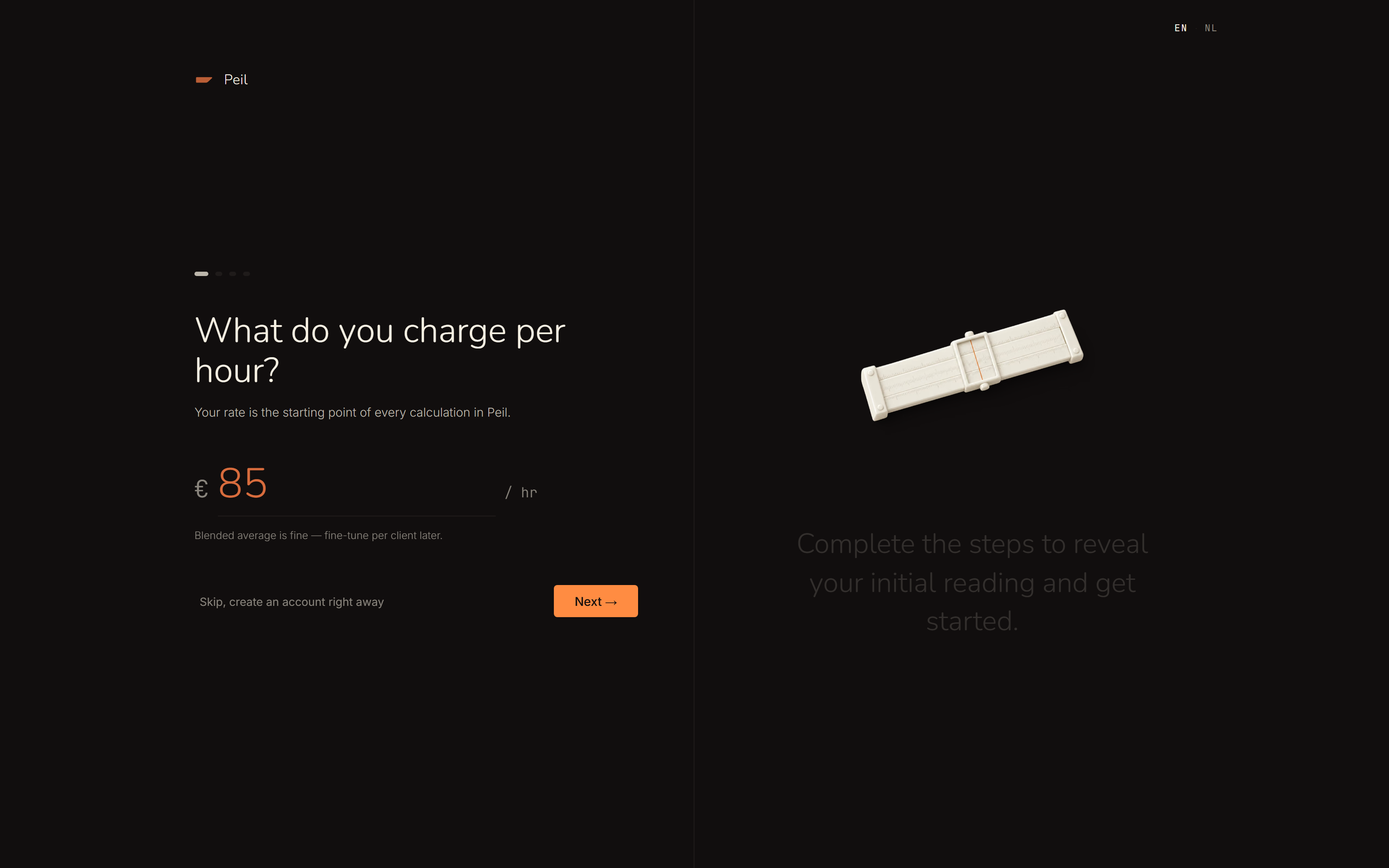
Under Refine you add what sharpens the picture: non-billable hours (business development, admin, quotes), business costs, your AOV and pension, and your buffer. Leave them blank and Peil calculates without them.
Came here from one of Peil's calculators, such as the hourly rate or freelance vs employment? Onboarding takes your numbers from it. It says so, and you change whatever isn't right.
What your first reading shows
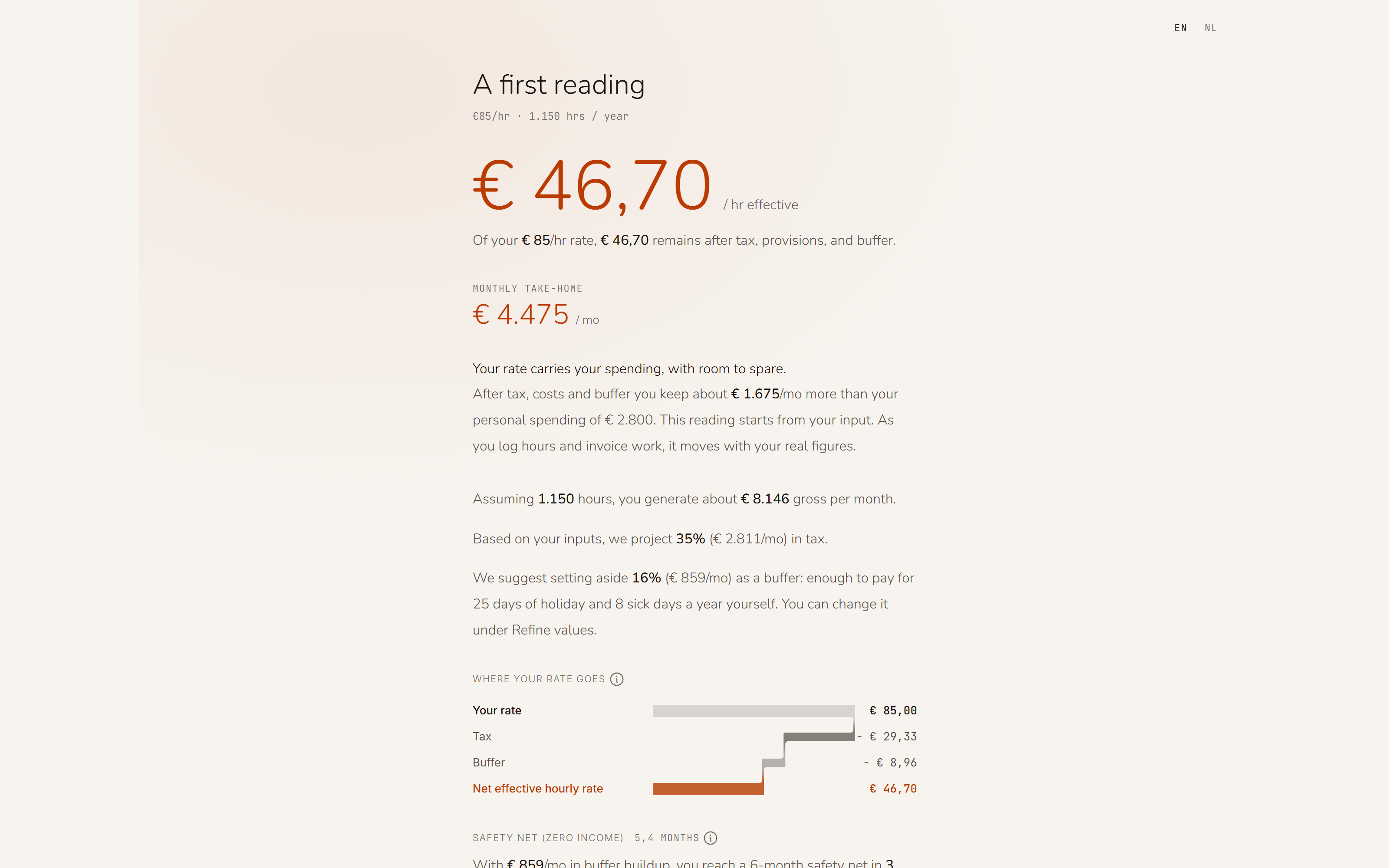
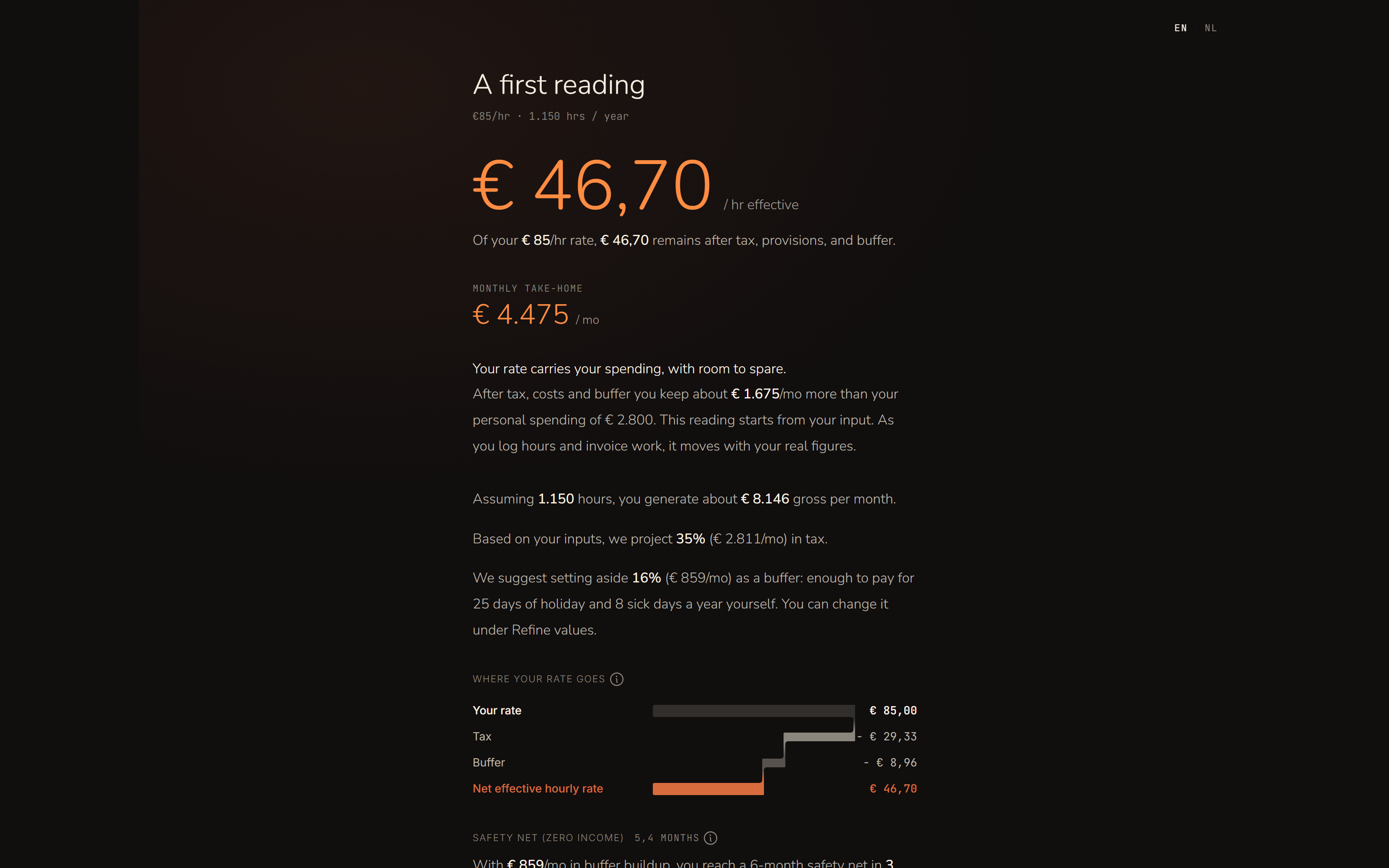
Peil runs your answers through the same tax calculation as the rest of the app straight away, and shows:
- Where your rate goes: from your revenue through tax, provisions and buffer to your take-home pay.
- Your net effective rate (NER): what you can pay yourself per billable hour. See NER explained.
- Your tax reserve per month.
- How many months your safety net lasts, if you filled in your savings.
Saving your reading
Save your reading creates a free account, with your email address or with Google. Your answers come along, so you fill in nothing twice. Peil then sends you a welcome email with your reading: where your rate goes, your take-home pay, what that would be as an employee, and your safety net. Sign up with your email address and that email arrives once you've confirmed your address.
Rather go straight in? Choose Skip, create an account right away. You do onboarding later, from the dashboard.
Setting up Peil: seven steps
After signing up, Peil opens on the dashboard. A card there lists the steps to a set-up account. Each step ticks itself off once you've done it:
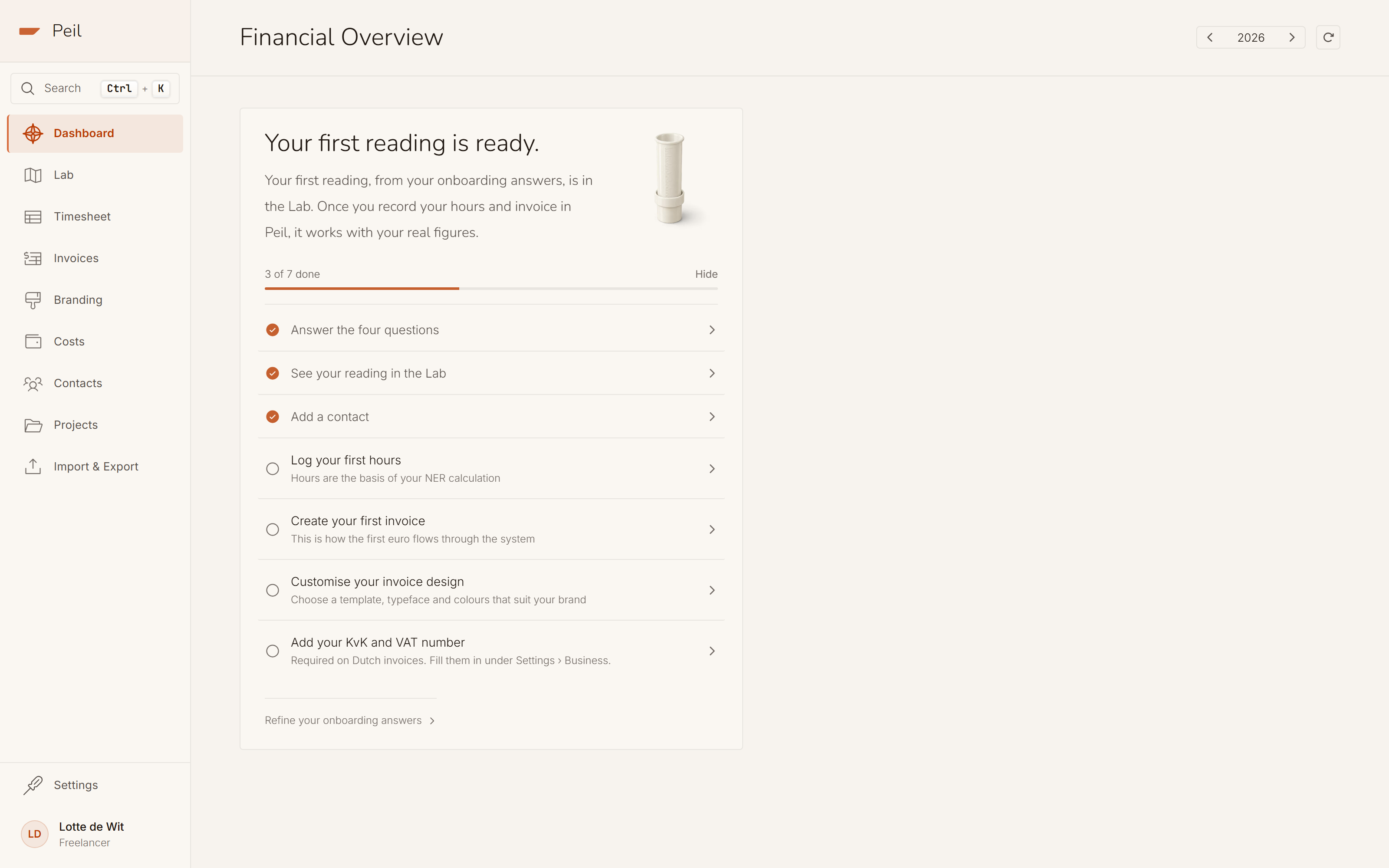
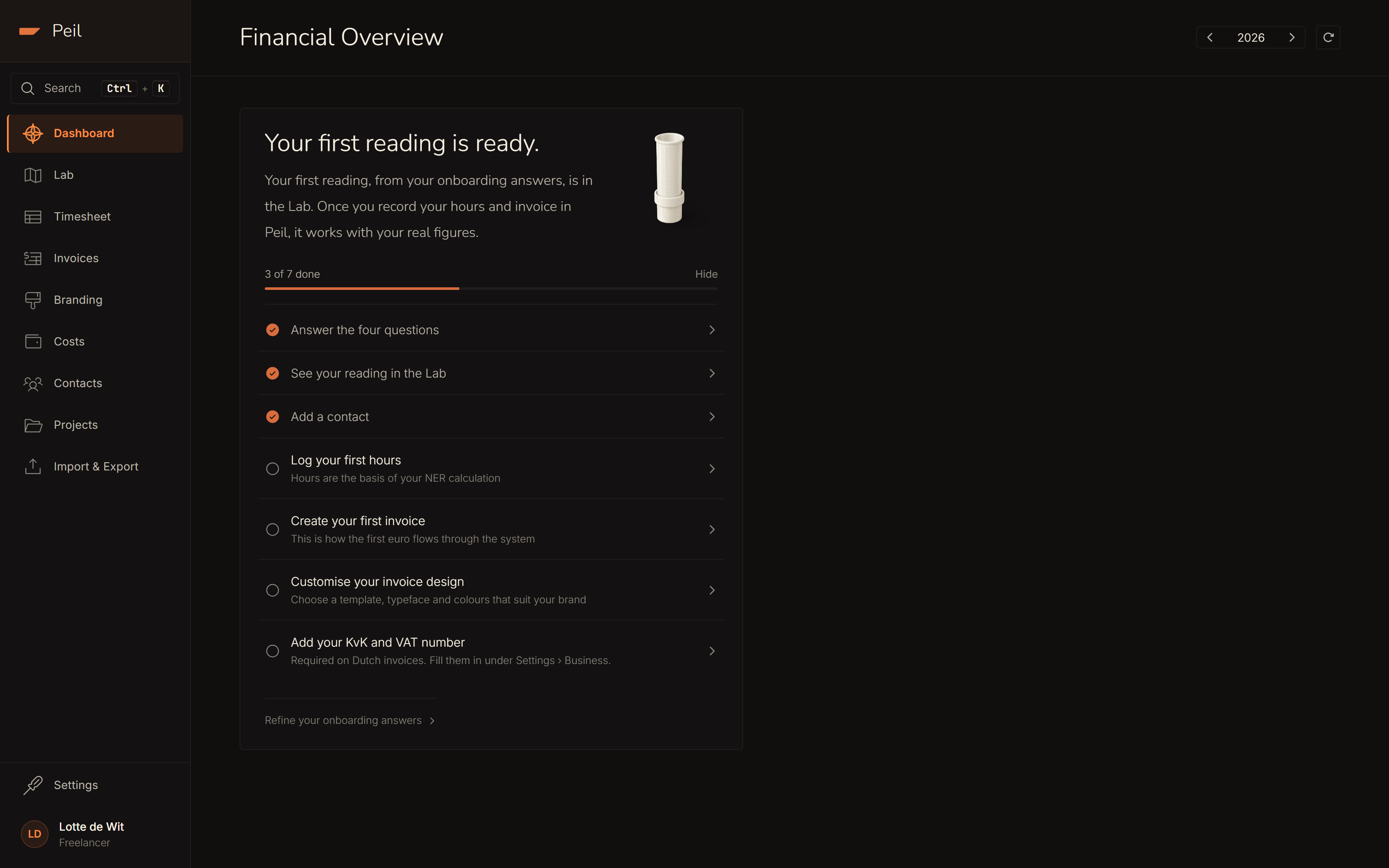
- Answer the four questions. If you did onboarding before your account, this step is already done.
- See your reading in the Lab, broken down and ready to play with. See Using the Financial Lab.
- Add a contact. Contacts link hours and invoices to your clients. See Managing clients.
- Log your first hours. See Tracking hours.
- Create your first invoice. See Creating & sending invoices.
- Customise your invoice design: a template, font and colour that suit you. See Invoice & brand design.
- Add your KvK and VAT number, under Settings › Business. They're required on a Dutch invoice.
On the other pages the sidebar keeps track of your progress, for example Onboarding · 3 of 7. Don't want to see the card any more? Choose Hide.
From estimate to your real numbers
Your first reading is an estimate based on what you filled in. Once you log hours and send invoices, Peil calculates with your actual numbers, and the picture sharpens every month. Want to see your estimate alongside? At the top of the Lab you choose between Onboarding and Actual, once you have both.
Looking for something in the app? Press ⌘/Ctrl + K. Type what you're
after, a feature, a setting or a question, and Peil shows the place in the app and the
documentation that covers it.
Start with onboarding. It takes a few minutes and no account.